
InMoment Extension is included in Enterprise plans and available as a paid add-on for Expert plans.
The Survalyzer InMoment Extension lets you embed surveys directly into your website and collect feedback during specific user interactions, without redirecting visitors to a separate survey.
With InMoment Extension, Expert users can manage embedded surveys independently, without relying on their organization’s IT or development teams for ongoing configuration and changes. While traditional website integrations often require developer support for both initial setup and subsequent adjustments, InMoment Extension lets you manage survey settings directly in Survalyzer after the initial integration.
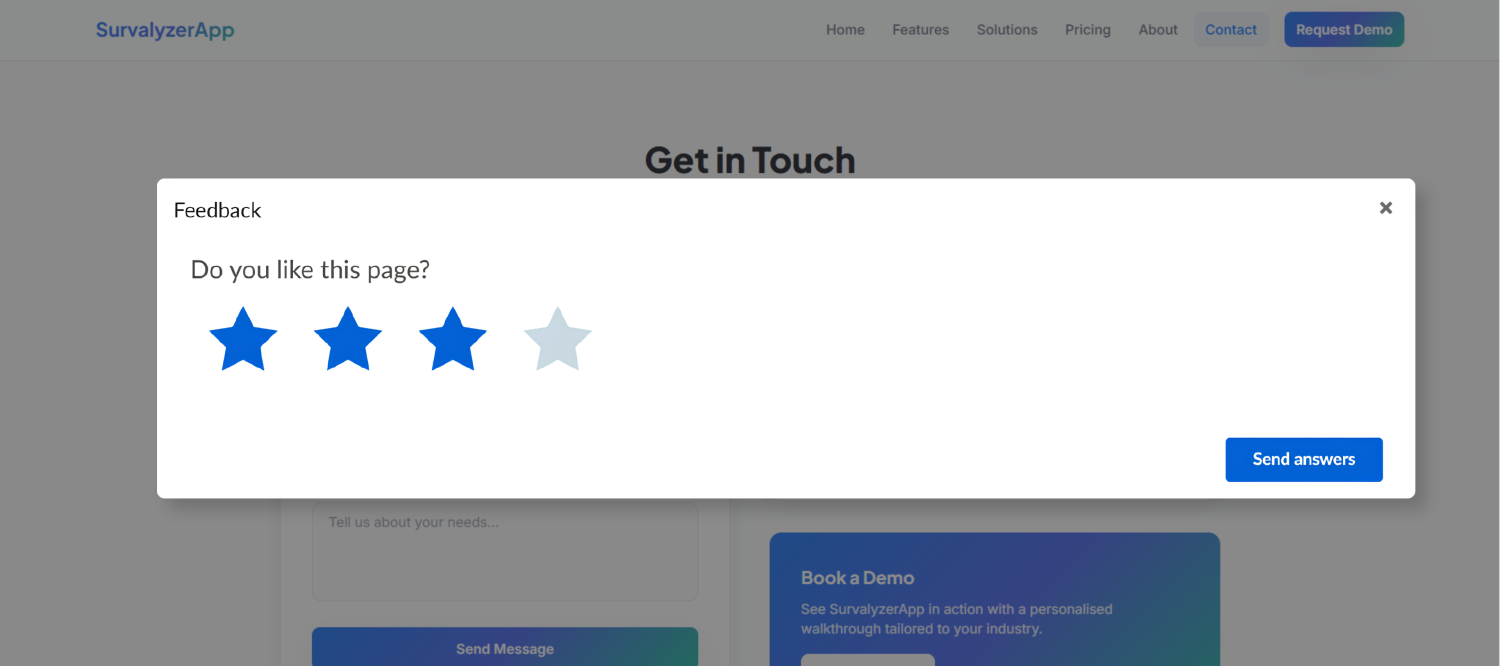
You can control where, when, and to whom surveys appear, and adjust these settings without modifying your website code for each change.
Display formats
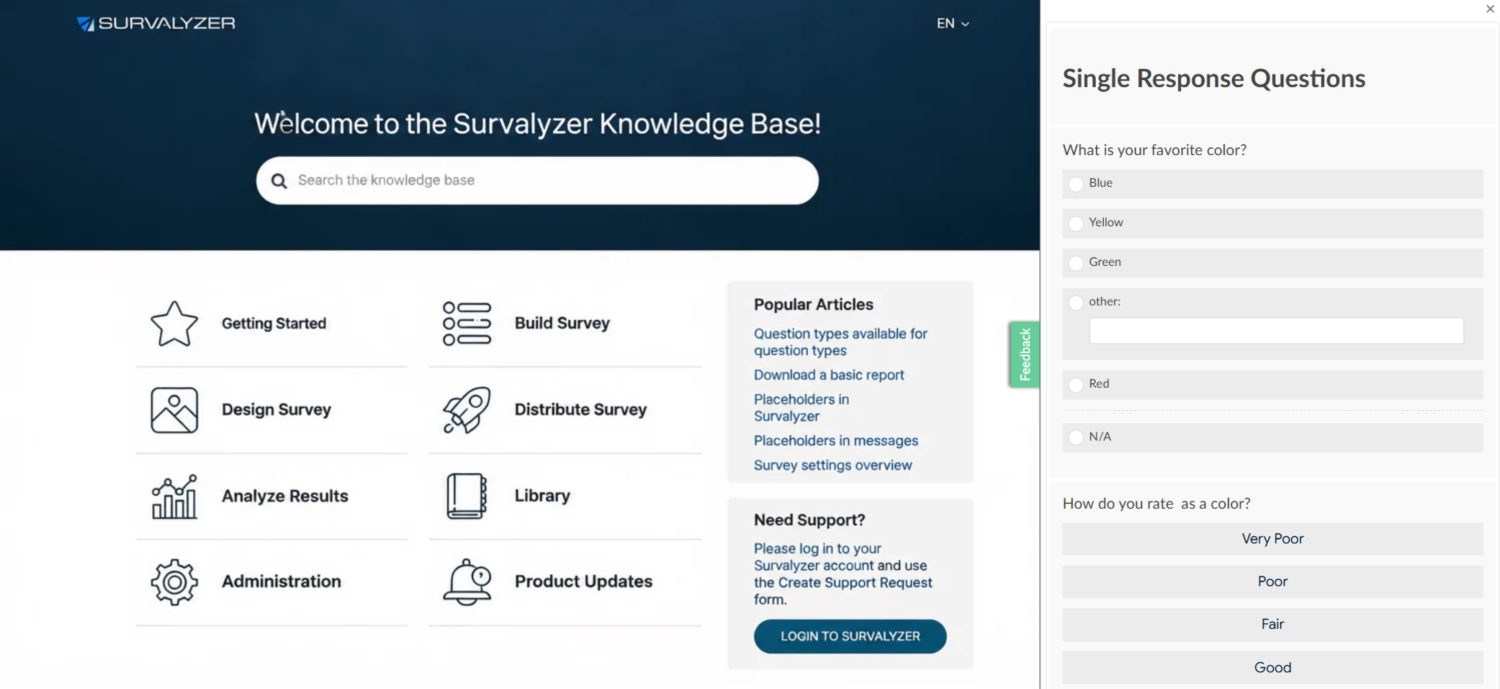
InMoment Extension lets you display surveys as prominent pop-ups or subtle slide-ins, depending on your use case and how much attention you want to draw from visitors.
The following display formats are available:
- Modal windows (pop-ups): Display surveys in large, small, or mini pop-up windows.
- Slide-ins: Display surveys in panels that appear from the left or right side of the page, or at the bottom (left, center, or right).
Available configuration options
InMoment Extension lets you control how surveys appear and interact with visitors on your website.
The following options are available in the configuration wizard:
- Page targeting: Display surveys on all pages or specific URLs.
- Visitor targeting: Define the percentage of website visitors who should see a survey.
- Behavior-based triggers: Display surveys when visitors click specific elements or scroll to a defined point on a page.
- Time-based triggers: Set a delay after a page loads or an event occurs.
- Device targeting: Select whether surveys appear on desktop, tablet, or mobile devices.
- Display frequency: Control repeated survey displays based on submission, closure, or visitor sessions.
- Website data transfer: Pass contextual information, such as URL parameters or values from page elements, to survey variables. Use these values to personalize questions or segment responses.
- Event tracking: Connect Google Tag Manager or Piwik PRO to track survey events, such as when a survey is loaded, started, completed, or closed.
For example, you can display a survey when a visitor reaches a specific product page and automatically pass the product ID to Survalyzer for further analysis.
Activate and configure InMoment Extension
Activation required
To activate InMoment Extension in your workspace, contact your Survalyzer account manager or Survalyzer Support and provide your workspace name and ID.
Once the extension is activated, follow these steps to integrate it with your website and configure your first survey distribution:
- Integrate the extension: Copy the integration script from Automation and add it to your website. Adjust Content Security Policy (CSP) settings if required.
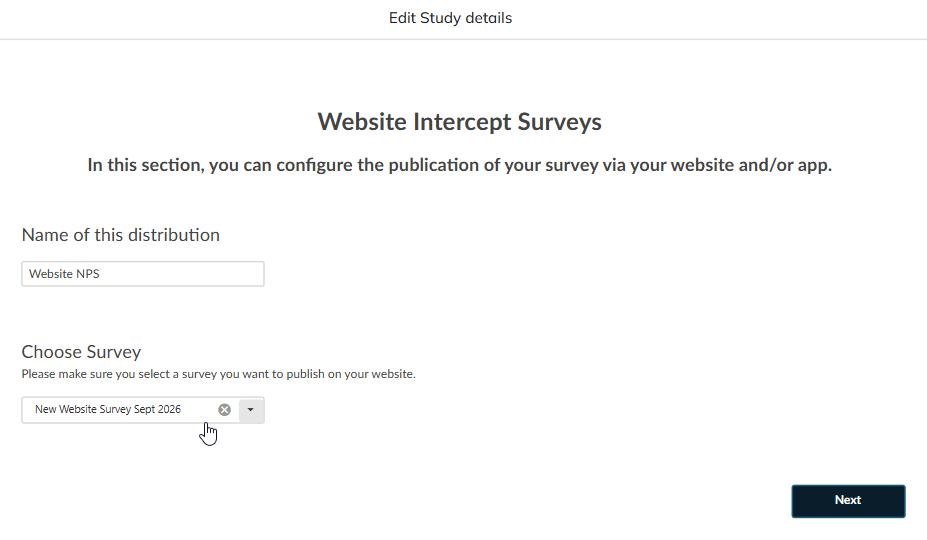
- Create a survey distribution: Create a survey in Survalyzer if you haven’t already. Then open InMoment Extension, enter a distribution name, and select the survey you want to display.
- Configure the distribution: Choose the display format, target pages, visitor groups, and triggering conditions. Add contextual data or tracking integrations if needed.
- Review and publish: Check the configuration summary, confirm your settings, and select Publish Survey.
After publishing, test the survey on your website to verify that it appears under the intended conditions and collects responses correctly.
For the complete activation procedure see How to enable the InMoment Extension in your Survalyzer Workspace?.
Customize the survey appearance
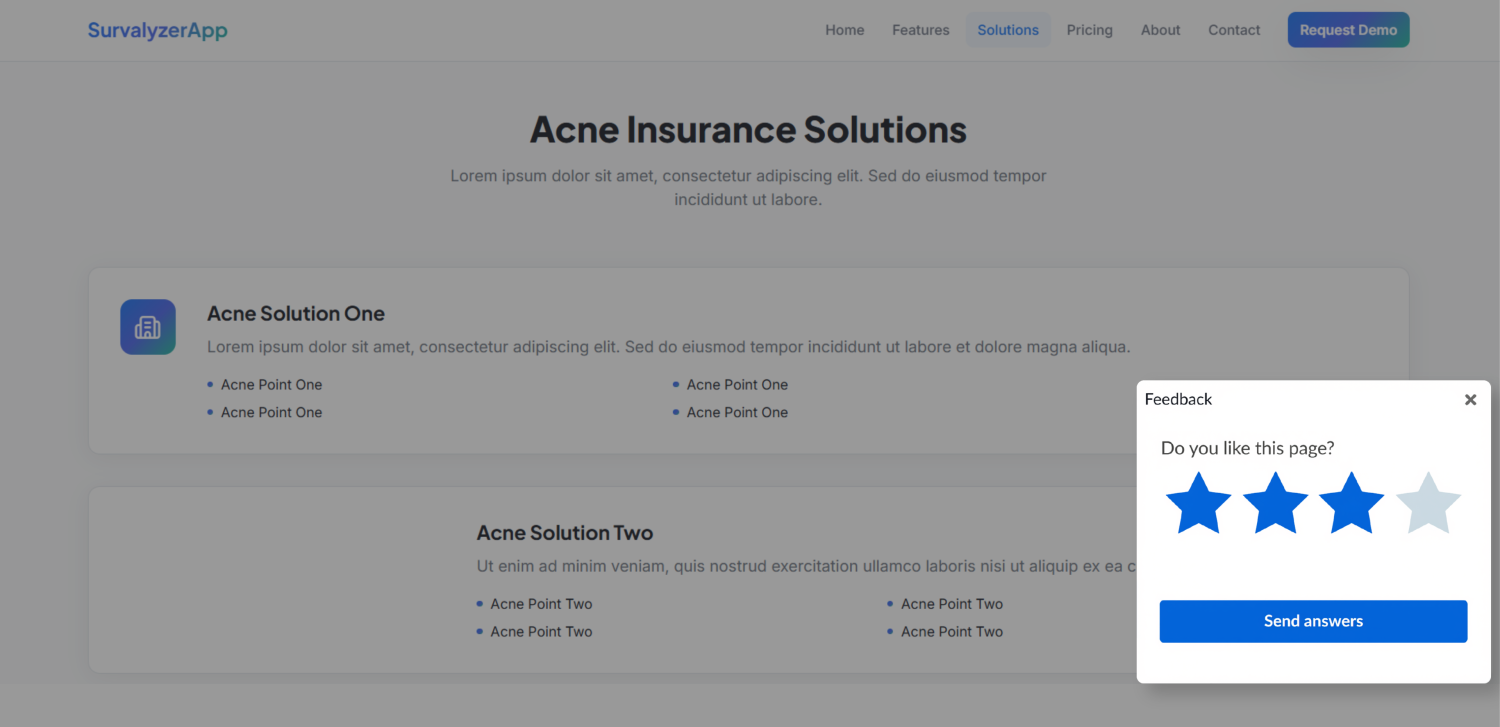
Match embedded surveys to your website’s design using the Survey Layout Designer in Survalyzer.
The designer lets you customize the survey’s colors, fonts, buttons, backgrounds, and other visual elements. The selected survey layout determines how the survey content looks, while InMoment Extension controls how and when it appears on your website.
Select an available survey layout or create and edit a custom layout. For more information, see Survey Layout Designer.
Access to Survey Layout Designer requires activation by the Survalyzer team and is subject to specific conditions. See Access to Layout Designers for Surveys, Messages and Reports for details.
Analyze survey responses
InMoment Extension displays a standard Survalyzer survey on your website. Responses are collected and stored in the same way as for any other survey in Survalyzer.
Analyze the results using any available report, depending on your license and access permissions. No additional reporting features are required specifically for surveys distributed through InMoment Extension.
If you pass contextual information from your website to survey variables, use these values to filter or segment your results. You can configure separate notifications in Survalyzer when feedback requires follow-up.
For more information, see resources in Analyze Results.
FAQ
Can I embed a survey without InMoment Extension?
Yes. You can embed a Survalyzer survey directly into your website using the standard embedding script.
This method displays the survey at a selected location on your webpage but offers fewer built-in configuration options than InMoment Extension. To control when the survey appears, target specific visitors, or automatically transfer data from your website, you or your web developer must develop and implement additional custom JavaScript. InMoment Extension provides these features out of the box, allowing you to configure them directly in its setup wizard without developing the functionality yourself.
For setup instructions and code examples, see Survalyzer Survey Embedding – standard process.