
Note: This feature is currently available only in Dashboard builder and requires an Expert user account with the Dashboard Extension.
By default, standard aggregators exclude answers marked as N/A. You can include these answers by adding an N/A row and adjusting the table calculations.
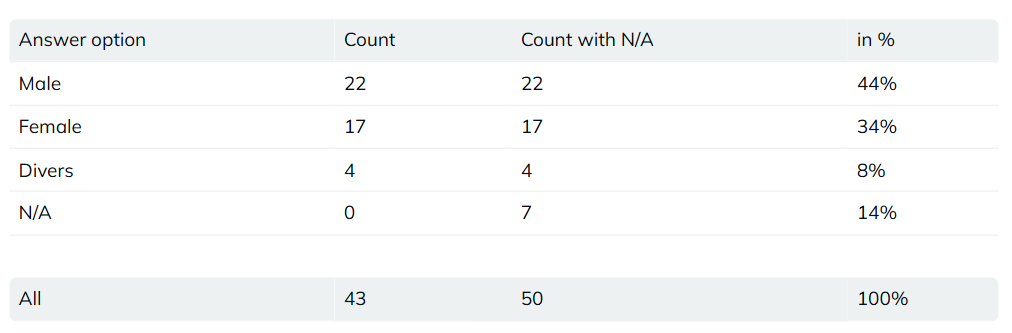
This example uses a single-response Gender question and displays the standard count, the count including N/A, and the corresponding percentages.
Step 1: Create the table with Table wizard
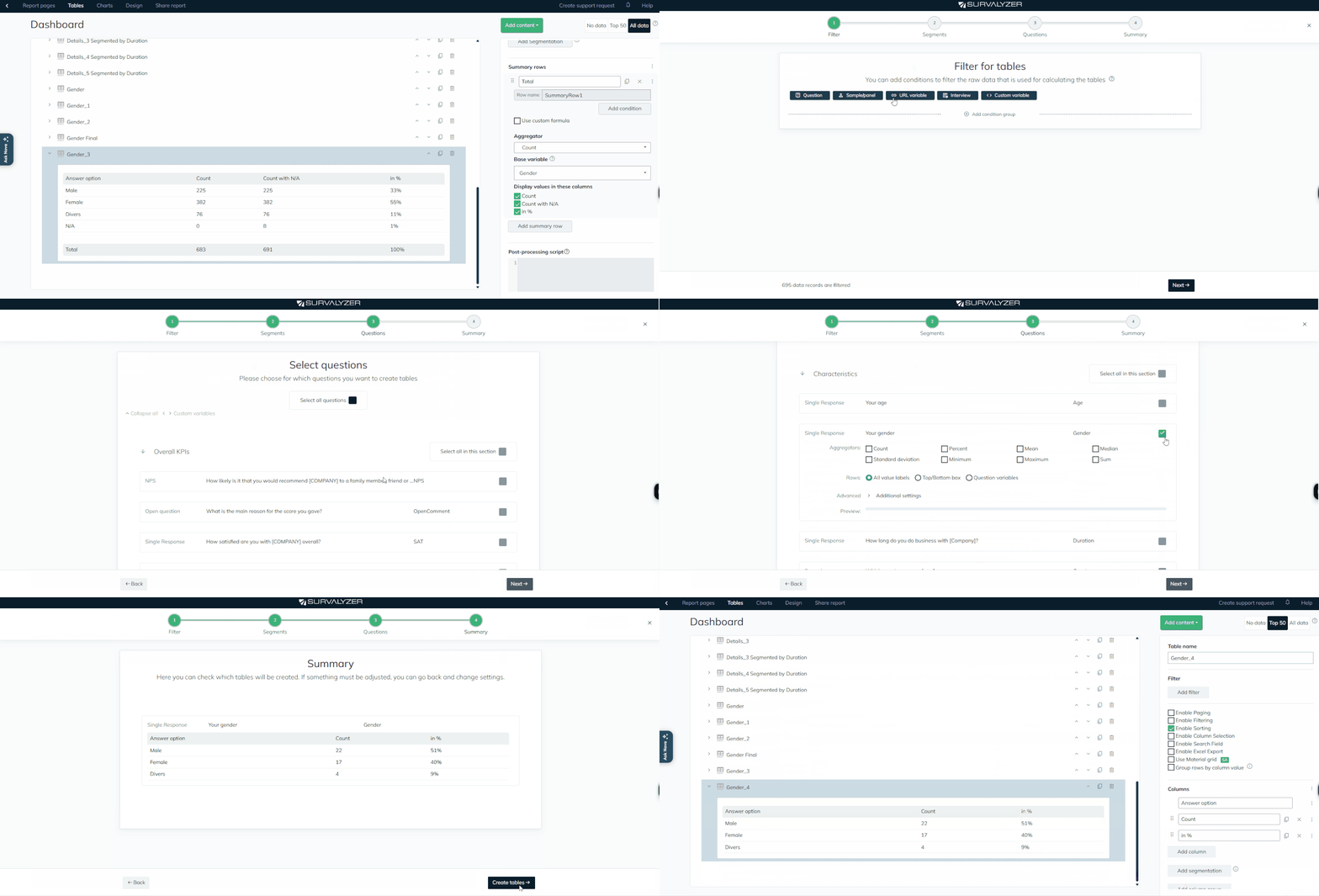
Start with Table wizard to create the standard table structure.
- Go to Tables and open Table wizard.
- Select the question that you want to analyze. In this example, we select the gender question named Gender.
- Keep Count and in % as the aggregators.
- Complete the wizard and click Create tables.
Table wizard creates the answer rows for each gender available in the question and the Count and in % columns.
See also Table wizard.
Step 2: Add the N/A row using sidebar settings
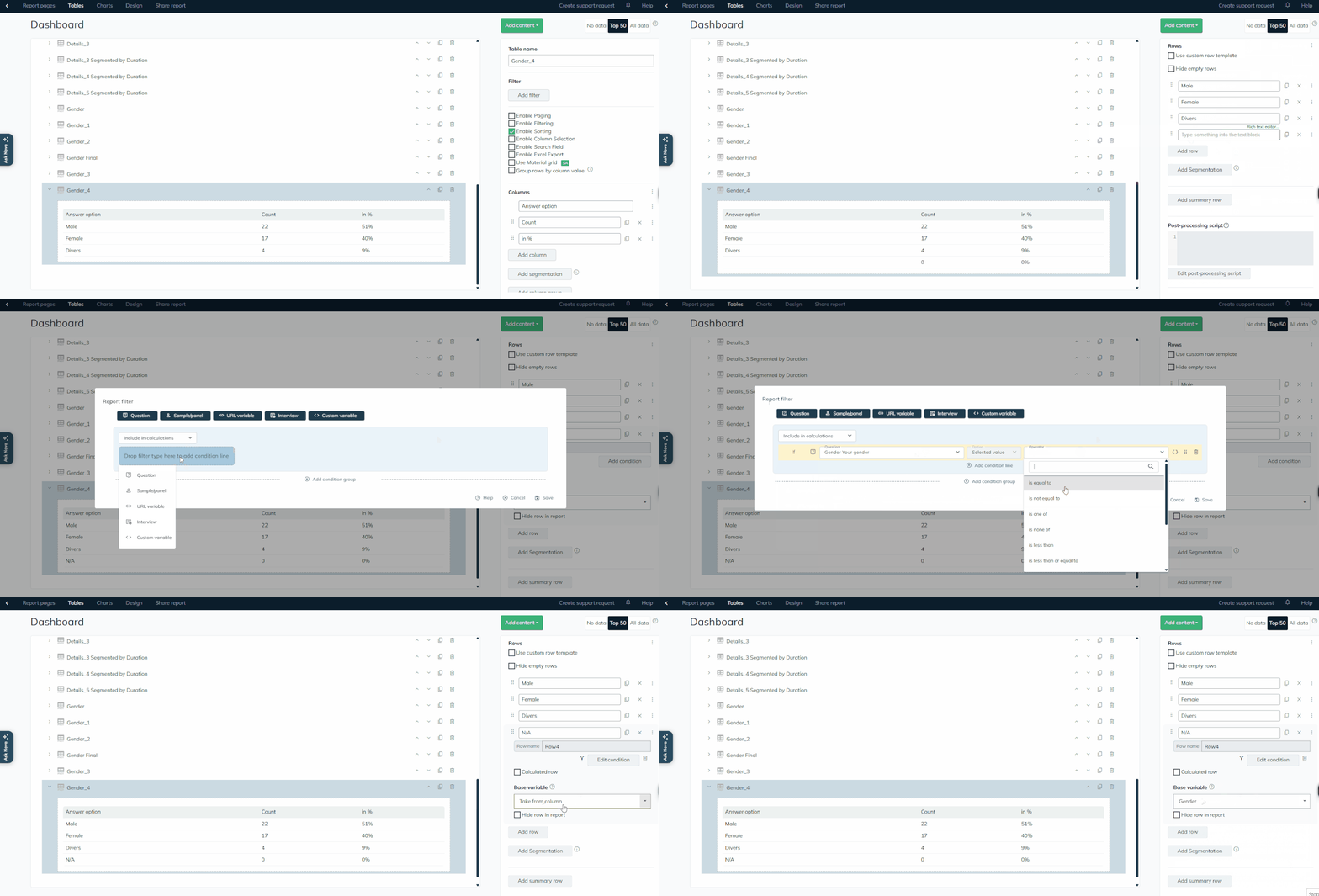
Table wizard creates rows for the regular answer options. Add a separate row for N/A.
- Under Rows, click Add row.
- Enter N/A as the row label.
- Configure the condition to include only the N/A answer. In this example, use Selected value is equal to N/A.
- Set Base variable to the question used in the table. In this example, select Gender.
- Click Save.
See also Pivot table settings.
Step 3: Add a Count column that includes N/A
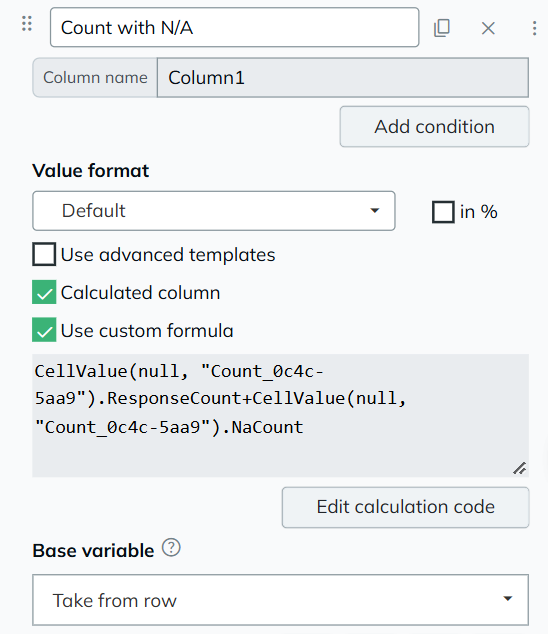
To calculate Count with N/A, add two values from the same Count column: ResponseCount and NaCount.
ResponseCount returns the standard response count, and NaCount returns the number of N/A responses. Use CellValue to reference both values from the Count column. This ensures that the calculation continues to return the correct values if the table is segmented.
- Duplicate the Count column and rename the duplicate to Count with N/A.
- In the Count with N/A column select Calculated column and Use custom formula.
- Edit calculation code.
- Build the calculation using the variables and functions available in the Placeholder section. The final formula should look similar to the example below.
The formula should look similar to this:
CellValue(null, "[Count column identifier]").ResponseCount+CellValue(null, "[Count column identifier]").NaCountThe Count column identifier is unique to your Dashboard, so replace the placeholder with the identifier used in your table.
For example:
CellValue(null, "Count_0c4c-5aa9").ResponseCount+CellValue(null, "Count_0c4c-5aa9").NaCount- Click Check code and save.
Step 4: Update the percentage calculation
The percentage must use the count including N/A as its numerator and include N/A in the total used as its denominator.
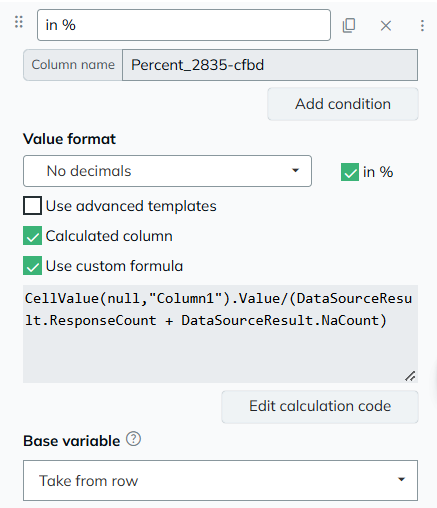
In the in % column:
- Click Edit calculation code.
- Build the calculation:
CellValue(null,"[Count with N/A column]").Value / (DataSourceResult.ResponseCount + DataSourceResult.NaCount)- Click Check code and save.
The formula divides the Count with N/A value for each row by the total number of regular and N/A responses.
Step 5: Add a Total row to check the results (optional)
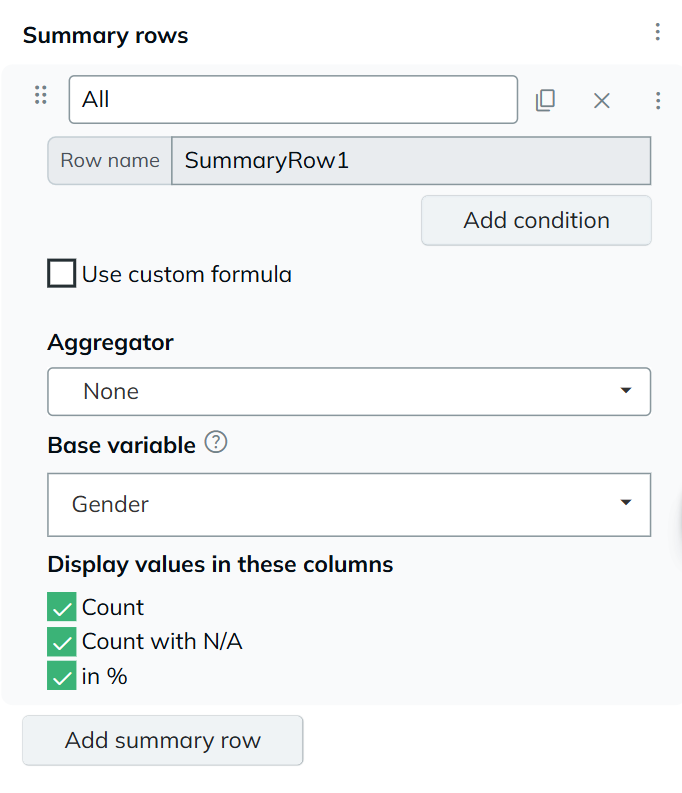
You can add a Total summary row to verify the calculation.
- Expand the Total row settings.
- Under Display values in these columns, select:
- Count
- Count with N/A
- in %
The Total row then displays the standard response count, the count including N/A, and 100% for the complete distribution.
Step 6: Hide the Count column (optional)
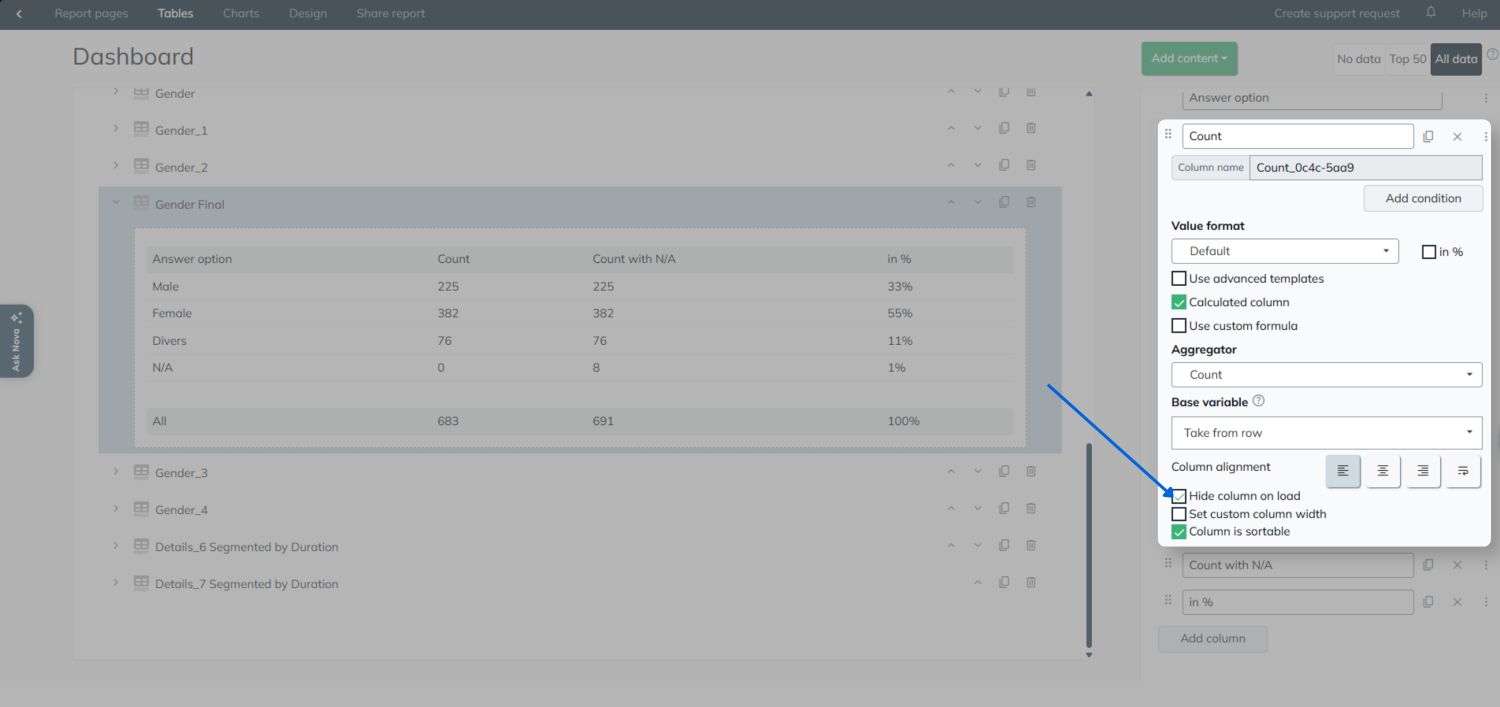
The Count column created by Table wizard is used as a reference in the custom calculation, but it does not need to appear in the final report.
- Open the Count column settings under each scale-value column group.
- Select Hide column on load.